
Notes work well for capturing quick thoughts. But the second you try to use them for more tracking books, saving papers to revisit, managing projects, keeping tabs on people you’ve met everything starts to feel like a messy drawer where nothing really has a home.
That’s where Databases come in.
In Conception, a database isn’t just a table. It’s a collection of structured notes each row is a real page you can open up, write in, and link from anywhere. The columns? Those just give each page some properties: status, date, a tag, a number, a relation whatever helps you make sense of your stuff. So your workspace adapts to the way you think, not the other way around.
This guide gives you a look at what databases can actually do, feature by feature.
Every Row is a Page
Here’s the big idea: each row is a note.
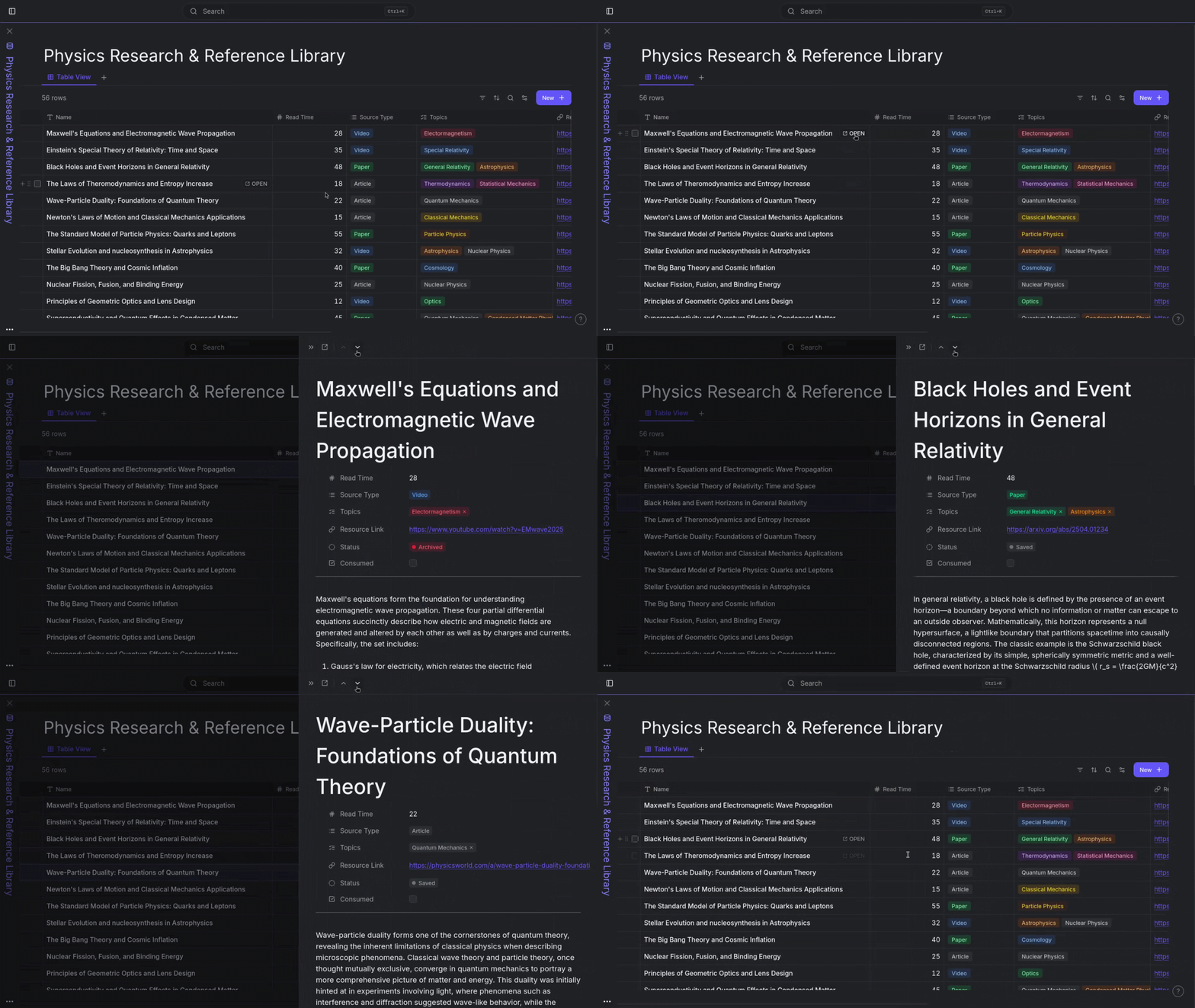
Click into any row, and you’re in a full-fledged Conception editor headings, blocks, embeds, AI commands, all of it. The properties you see in the table are just front-matter for that note. So you never have to give up flexibility to get structure; you get both.
That’s also why you can link to a database row from any other note, and why search and the knowledge graph treat these entries like first-class citizens.
Property Types - Find the Right Fit for Your Data
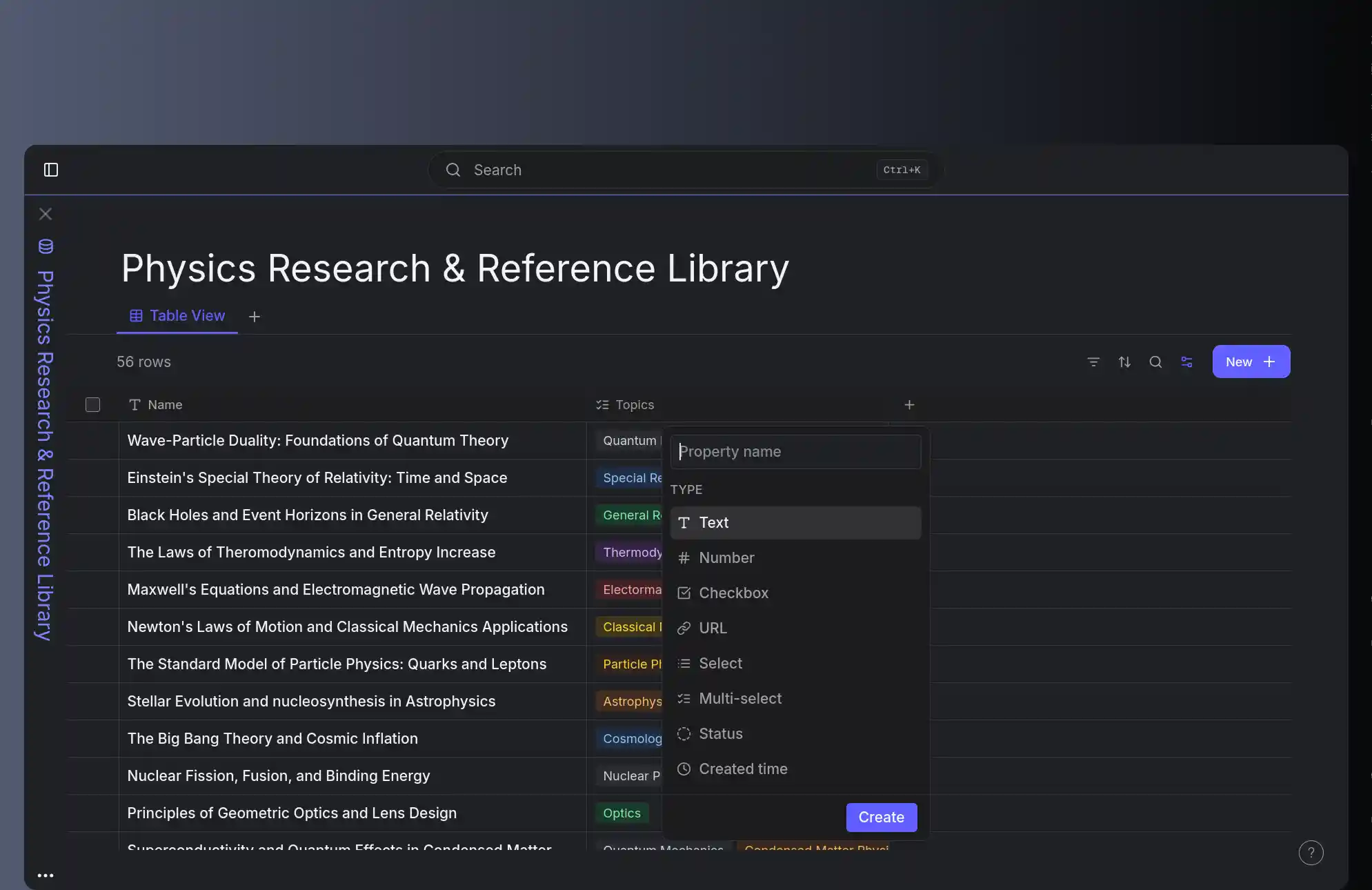
Every column in a database has a type. The type shapes how you enter, view, sort, and calculate values. Conception has a lot of options:
- Text – the default for titles and general info
- Number – integers, decimals, even formatted as currency or percent
- Select and Multi-select – colored chips from a list you define
- Status – great for tracking things like “To Do / In Progress / Done”
- Date – single dates or ranges
- Checkbox – simple yes/no toggles
- URL – quick ways to store validated info
- Created time and Last edited time – automatic timestamps
You can change a column’s type anytime from the column header. Conception will keep your data and adjust where it can so you can turn a “yes/no” text column into a checkbox, or swap a select into a multi-select without losing your choices.
Rename, Reorder, and Reshape Columns
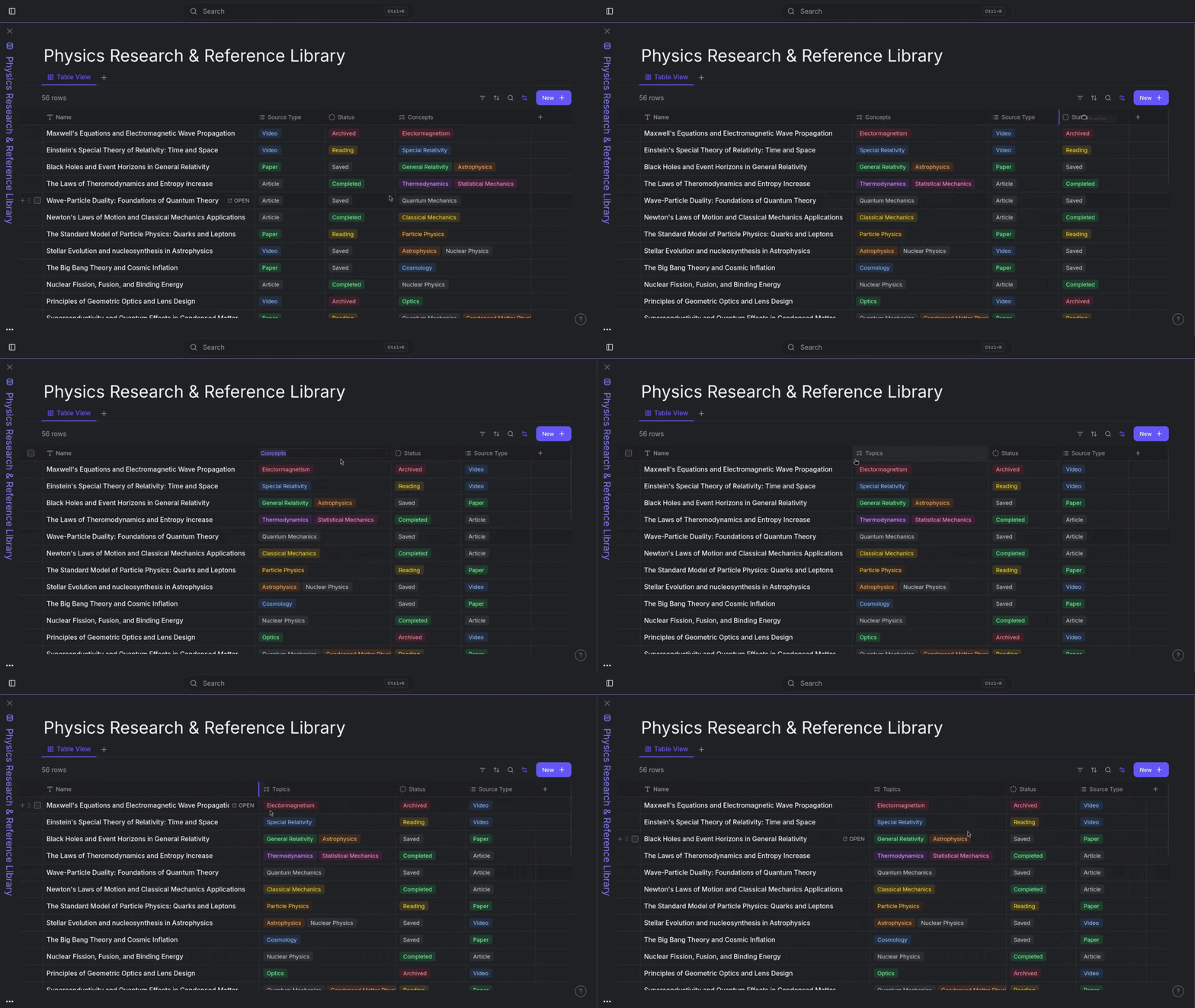
Things change and so should your schema. With databases, you can:
- Rename a column by double-clicking its header
- Drag and rearrange columns to put the important stuff up front
- Resize columns by pulling the right edge widths stick with each view
- Duplicate a column to copy its setup and values across all rows
- Delete a column without losing the history tucked away in that property
Need a new column? Just hit the + at the right side of the header row, pick a type, and get started.
Property Visibility - See Only What Matters
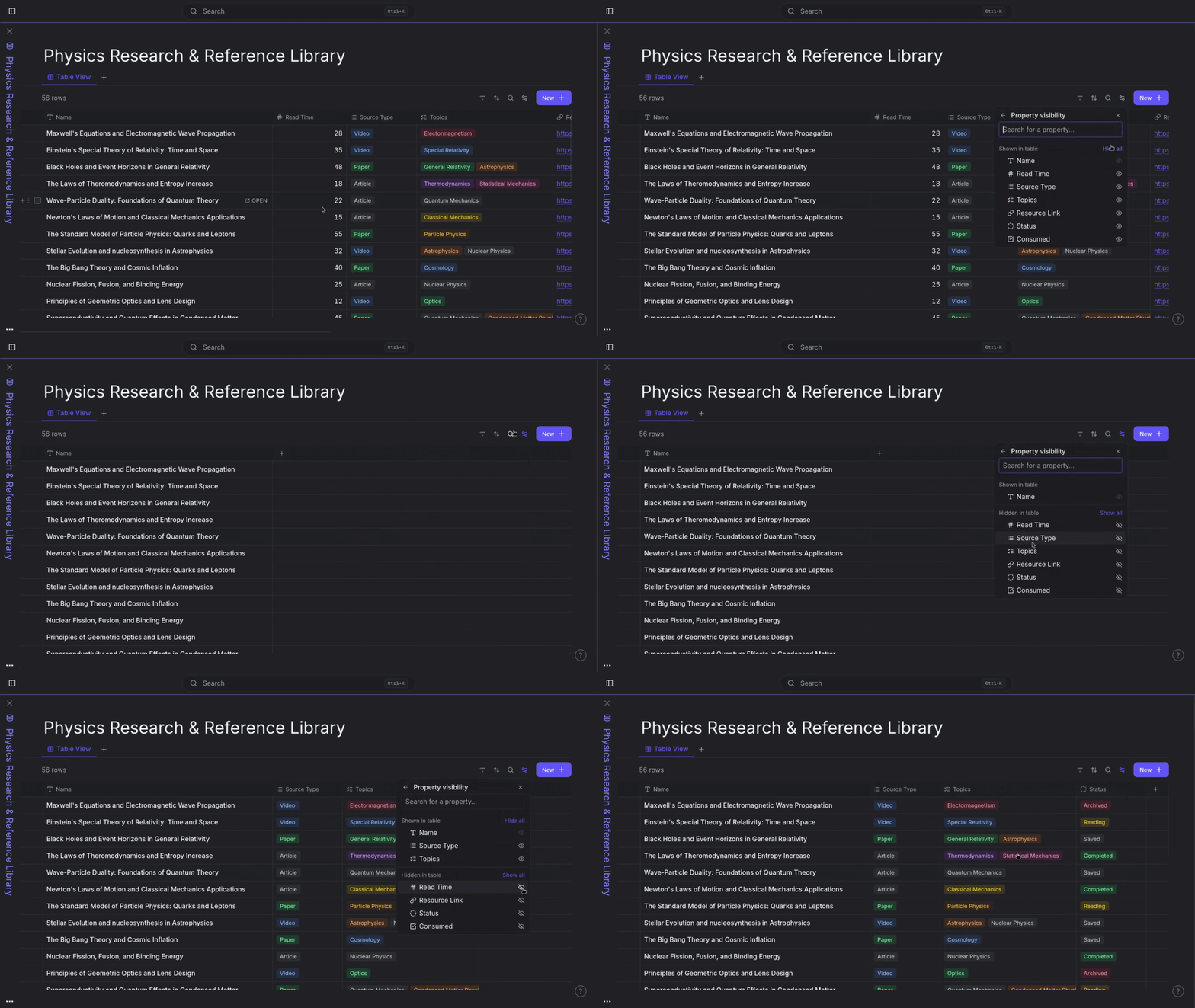
Not all columns are useful all the time. With property visibility, you can hide columns from a view without deleting them from the database. The editor and other views still have everything this view stays focused on what you care about.
Combine visibility settings with different views (we’ll get to those in a second) and you can turn a single database into a Kanban board, a checklist, or a spreadsheet whatever fits your current workflow.
Freezing Columns - Keep Your Anchors in Sight
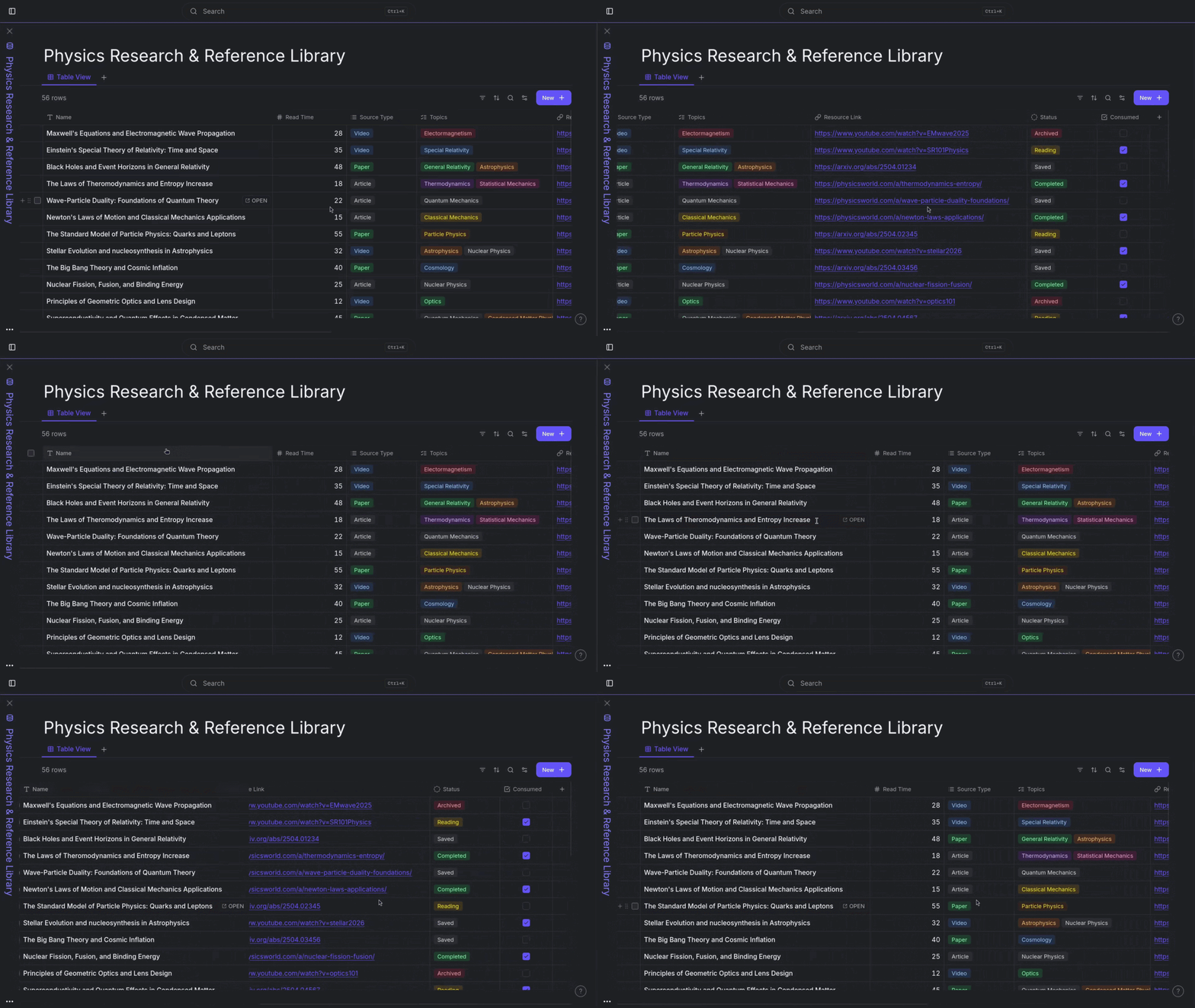
Wide databases mean lots of horizontal scrolling. Freezing columns lets you lock one or more columns to the left edge so you never lose sight of them as you scroll. Most folks freeze the title; some like to pin status or date too. You’ll see a soft shadow where the frozen region ends.
Sorting - Make Order Stick
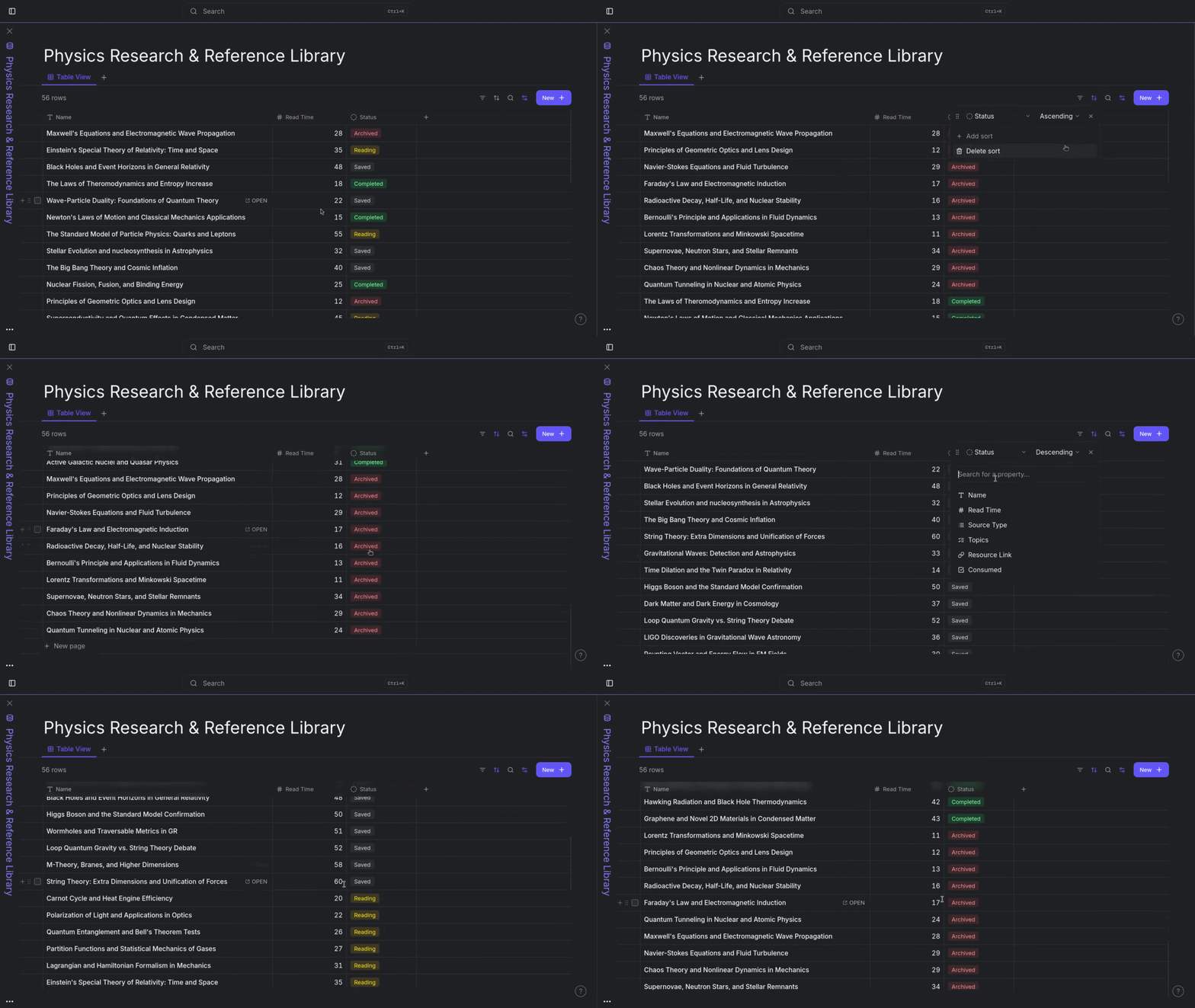
Sort by any property, up or down, and stack multiple sort rules to break ties. Maybe it’s Status, then Due Date, then Title. Each view keeps its own sort, so you can organize differently depending on what you’re working on.
If you drag a row while a sort is on, Conception asks whether you want to clear the sort since you can’t have both manual and automatic order. The choice is yours, every time.
Filtering - Zoom In Without Losing Track
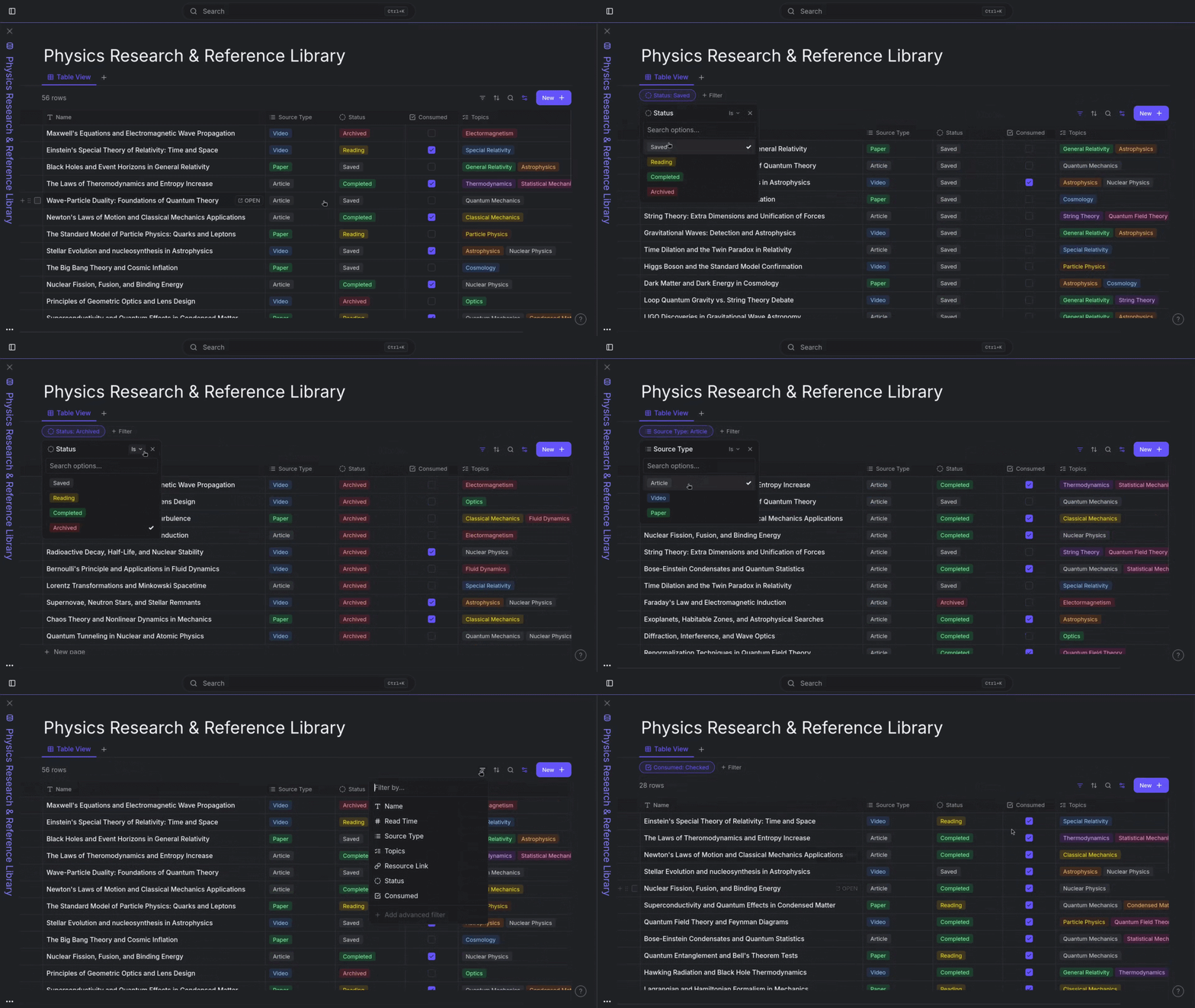
Filters answer questions like: what’s due this week, what’s blocked, what hasn’t changed in a month. Set up filters property by property, combine them with AND or OR logic, and narrow things down just the way you like.
Filters live on the view, not the whole database. So your “Inbox” can hide everything already started, while “Backlog” shows just what’s waiting. It’s the same data just seen from another angle.
Grouping - See Patterns in Your Data
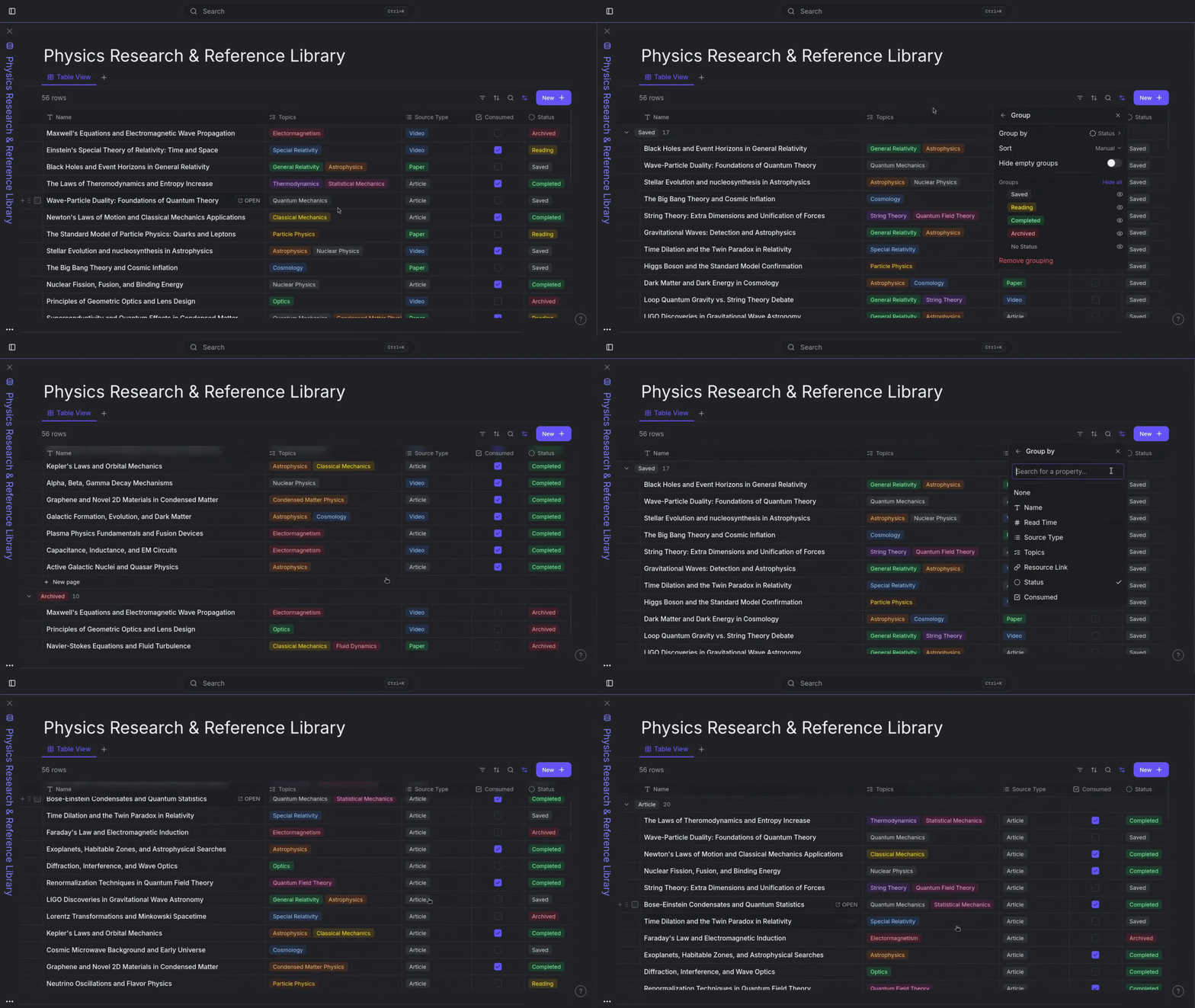
Group by any select, multi-select, or status property and you get bands for each option like lanes in a Kanban board. You can:
- Collapse or expand groups
- Completely hide groups you don’t need right now
- Add a new row directly into a group (property auto-fills)
- Change a group’s color right from the header, updating the base option
Grouping instantly transforms a flat table into a board, a roadmap, a status snapshot whatever lets you see the big picture, with zero data restructuring.
Search - Find What You Need, Fast
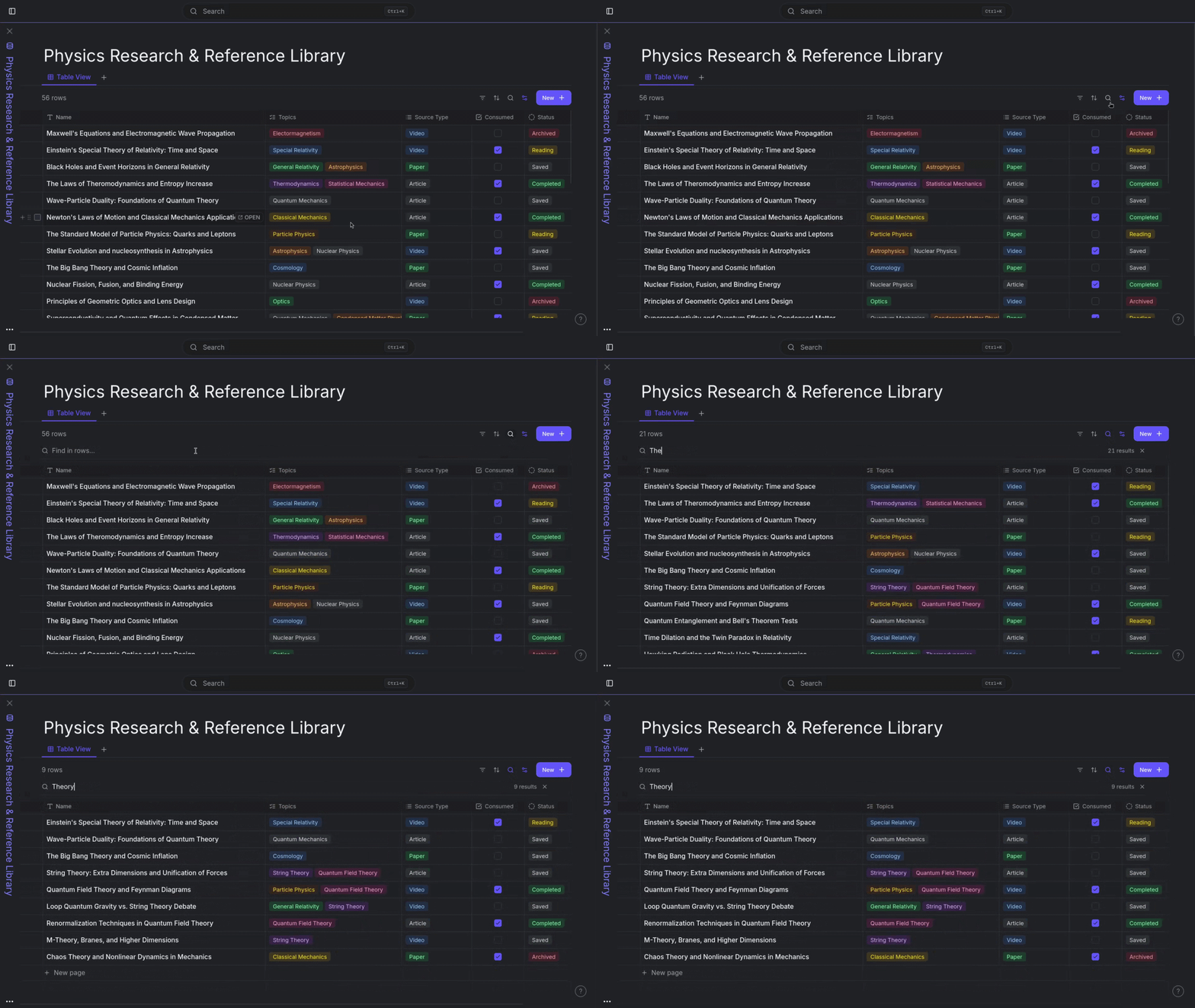
Every database lets you search right where you are. It checks across visible properties and instantly surfaces matching rows as you type. Paired with filters and grouping, search gets you straight to the row you want, no need to click around.
Column Calculations - Data at a Glance
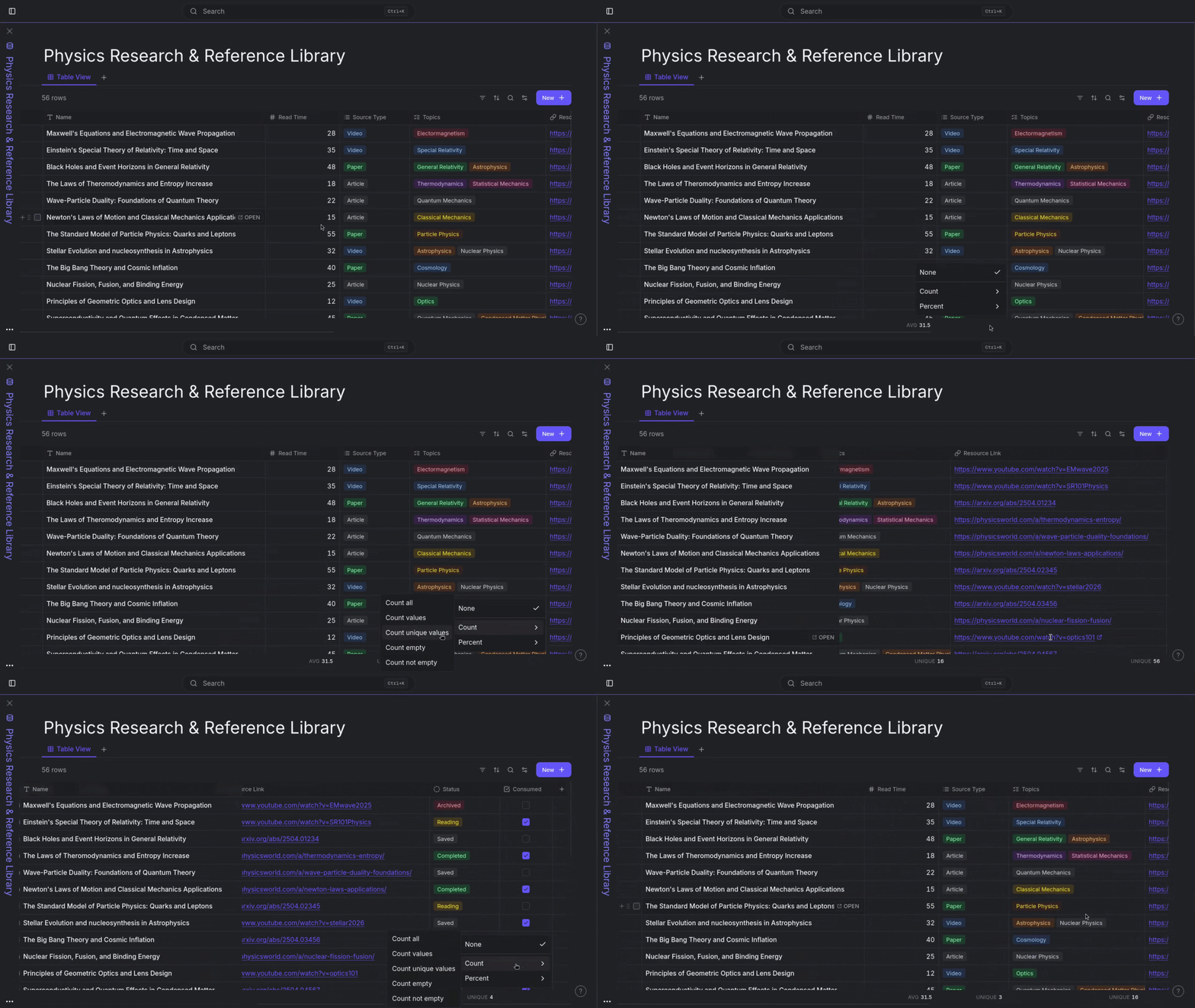
At the bottom of every column, there’s a calculation footer. Choose a calculation and watch results update as you work:
- Count – all rows, filled cells, unique values, empty, non-empty
- Percent – filled vs. empty
- Sum, Average, Min, Max, Range – for numbers
See your total budget in the footer. Check percent complete on your reading list. Track open deals in a pipeline. No formulas, no hassle just pick what you need.
Bulk Select and Bulk Operations
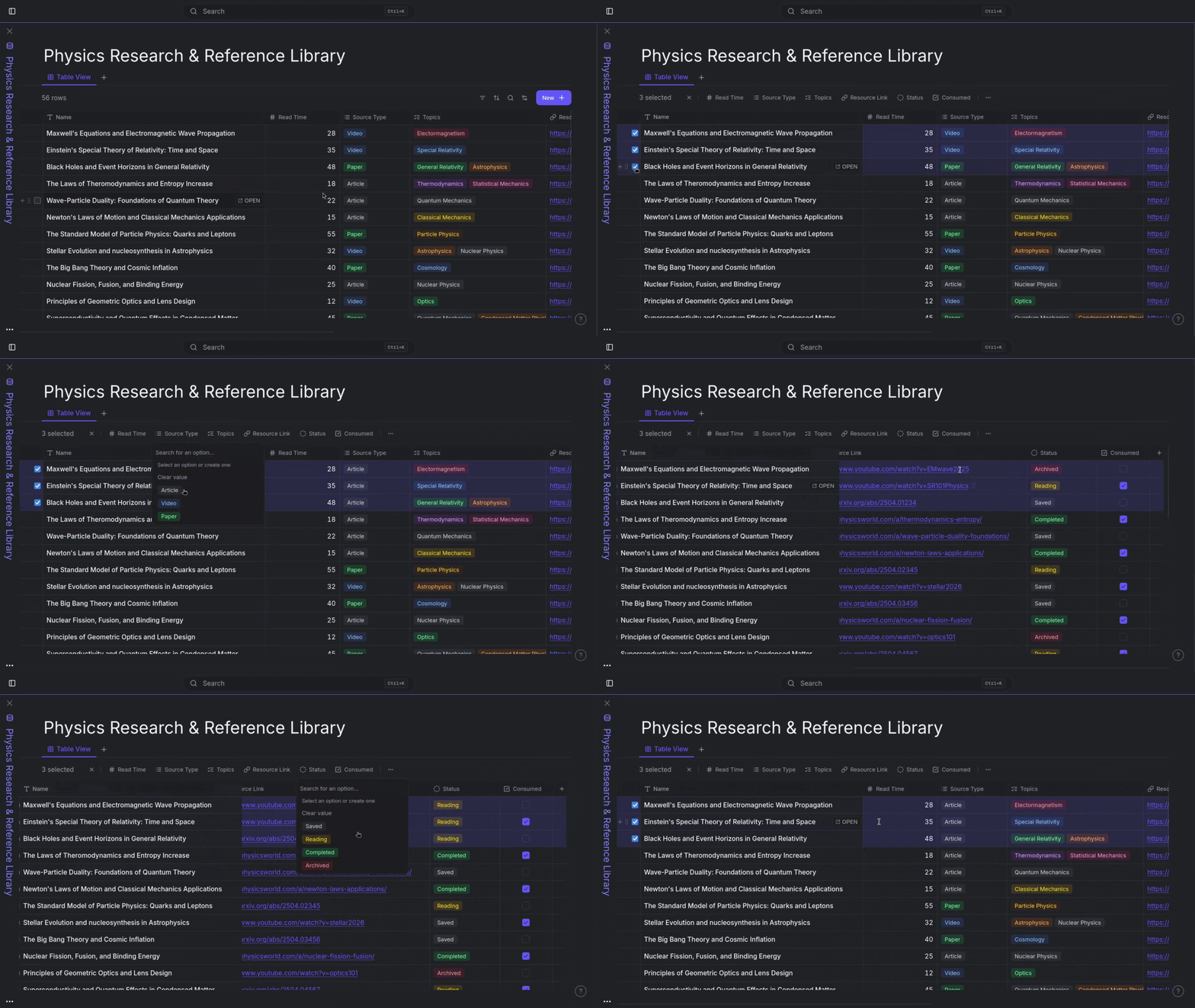
Need to work on lots of rows at once? Hold Shift to select a group, or use Cmd/Ctrl+A to grab everything you see. You’ll get a toolbar to help you delete, edit a property on all selected rows, or open them one after another.
If you’re all about the keyboard, arrows jump through cells, Enter edits the current cell, Space toggles row selection, and Escape clears it. You can move everywhere without touching the mouse.
Templates - Start New Pages Your Way
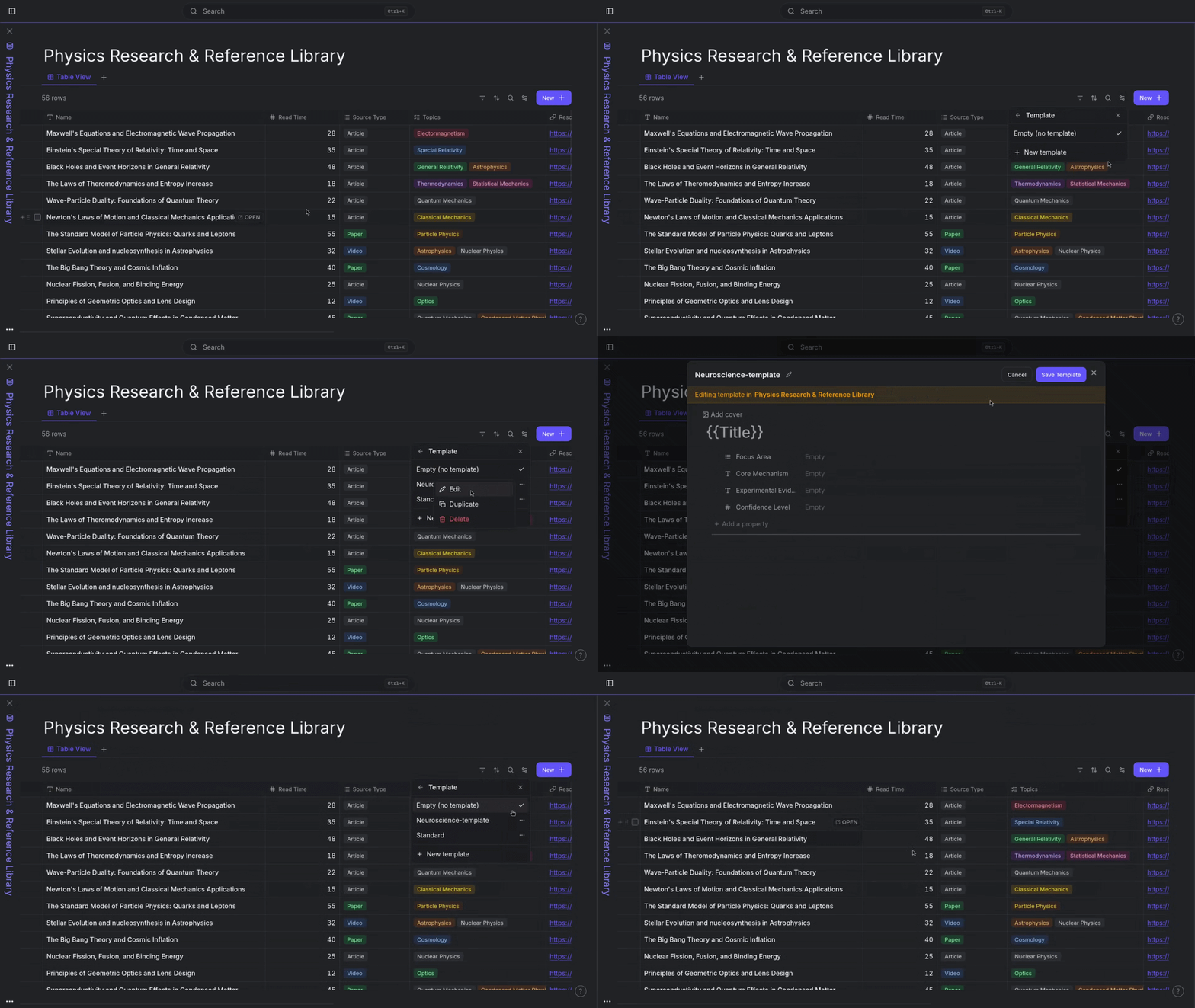
Most rows aren’t just empty notes. A meeting note has an agenda. A book entry has a summary, takeaways, maybe a rating. Projects have goals and important milestones.
With a database template, every new row starts with your default structure. The note’s properties swap out for the actual database fields, but the body your headings, checklists, whatever are right where you want them. Less repetition, more creating.
Views - See the Same Data from Different Angles
A database isn’t stuck in one shape. Each view has its own setup:
- Different visible columns
- Custom sort orders
- Unique filters
- Grouping
- Individual column widths and frozen settings
- Calculation footers
Make as many views as you want. Switch instantly. Rename, duplicate, or delete views as you need. The same info can be a table for entering data, a gallery for browsing, or a board for actually doing the work, no need to copy anything.
Putting It Together
A book tracker. A reading list. CRM. Research log. Project tracker. Bug board. Habit log. Travel planner. Recipe collection.
They’re not separate apps they’re just databases in Conception, built by you. The features above are your toolkit. The structure you create is what turns scattered notes into a reliable system.
Try It
Add a column. Make a few rows. Group by something meaningful. Hide what you don’t want. Save a view. Open a row and jot inside see it for the page it really is.
In minutes, you’ll have something that feels custom because it is custom.
Give Conception a try. Conception